Python

Rapid generation of powerpoint report with template scanning

In my work, I need to create PowerPoint (ppt) report of similar template.  For the report, I need to create various plots in Excel or JMP, save it to folders and finally paste them to ppt. It be great if it is possible to generate ppt report  rapidly by using automation. I have created a python interface to powerpoint using com commands hoping it will help to generate the report automatically.

The initial idea is to add command to paste the plots at specific slides and specific positions. The problem with this is that I have to set the position values and picture sizes for each graph in the python script. This become tedious and have to set independently for each report type.

The new idea will be to give the script a scanned template and the script will do the following commands:

  1. Create a template ppt with the graphs at particular slide, position and size set.
  2. Rename each object that you need to copy with the keywords such as ‘xyplot_Qty_year’ which after parsing will require a xyplot with qty as y axis and year as x axis. This will then get the corresponding graph with the same type and qty path and link them together.
  3. See the link on how to rename objects.
  4. The script will scan through all the slide, getting all info of picture that need to be pasted by having the keyword. It will note the x and y positon and the size.
  5. The script will then search the required folder for the saved pic file of the same type and will paste them to a new ppt.

The advantage of this approach is that multiple scanned template can be created. The picture position can be adjusted easily as well.

Sample of the script is as below. It is not a fully executable script.

import os
import re
import sys

import pyPPT

class ppt_scanner(object):
    def __init__(self):

        # ppt setting
        self.ppt_scanned_filename = r'\\SGP-L071166D033\Chengai main folder\Chengai setup files\scanned_template.ppt'

        # scanned plot results
        self.full_scanned_info = dict()
        self.scanned_y_list = list()

        # plots file save location where keyword is the param scanned
        self.bivar_plots_dict = dict()# to be filled in 

        #ppt plot results
        ##store the slide no and the corresponding list of pic
        self.ppt_slide_bivar_pic_name_dict = dict()

    def initialize_ppt(self):
        '''
            Initialize the ppt object.
            Open the template ppt and save it to target filename as ppt and work it from there
            None --> None (create the ppt obj)

        '''
        self.pptobj = UsePPT()                                          # New ppt for pasting the results.
        self.pptobj.show()
        self.pptobj.save(self.ppt_save_filename)
        self.scanned_template_ppt = UsePPT(self.ppt_scanned_filename)   # Template for new ppt to follow
        self.scanned_template_ppt.show()

    def close_all_ppt(self):
        """ Close all existing ppt. 

        """
        self.pptobj.close()
        self.scanned_template_ppt.close()

## Scanned ppt obj function
    def get_plot_info_fr_scan_ppt_slide(self, slide_no):
        """ Method (pptobj) to get info from template scanned ppt.priorty to get the x, y coordinates of pasting.
            Only get the Object name starting with plot.
            Straight away stored info in various plot classification
            Args:
                Slide_no (int): ppt slide num
            Returns:
                (list): properties of all objects in slide no

        """
        all_obj_list =  self.scanned_template_ppt.get_all_shapes_properties(slide_no)
        self.classify_info_to_related_group(slide_no, [n for n in all_obj_list if n[0].startswith("plot_")] )
        return [n for n in all_obj_list if n[0].startswith("plot_")]

    def get_plot_info_fr_all_scan_ppt_slide(self):
        """ Get all info from all slides. Store info to self.full_scanned_info.

        """
        for slide_no in range(1,self.scanned_template_ppt.count_slide()+1,1):
            self.get_plot_info_fr_scan_ppt_slide(slide_no)

    def classify_info_to_related_group(self, slide_no, info_list_fr_one_slide):
        """Group to one consolidated group: main dict is slide num with list of name, pos as key.
            Append to the various plot groups. Get the keyword name and the x,y pos.
            Will also store the columns for the y-axis (self.scanned_y_list).
            Args:
                slide_no (int): slide num to place in ppt.
                info_list_fr_one_slide (list):

        """
        temp_plot_biv_info, temp_plot_tab_info, temp_plot_legend_info = [[],[],[]]
        for n in info_list_fr_one_slide:
            if n[0].startswith('plot_biv_'):
                temp_plot_biv_info.append([n[0].encode().replace('plot_biv_',''),n[1],n[2], n[3], n[4]])
                self.scanned_y_list.append(n[0].encode().replace('plot_biv_',''))

        self.ppt_slide_bivar_pic_name_dict[slide_no] = temp_plot_biv_info

## pptObj -- handling the pasting
    def paste_all_plots_to_all_ppt_slide(self):
        """ Paste the respective plots to ppt.
        """
        ## use the number of page as scanned template
        for slide_no in range(1,self.pptobj.count_slide()+1,1):
            self.paste_plots_to_slide(slide_no)

    def paste_plots_to_slide(self, slide_no):
        """ Paste all required plots to particular slide
            Args:
                slide_no (int): slide num to place in ppt.

        """
        ## for all biv plots
        for n in self.ppt_slide_bivar_pic_name_dict[slide_no]:
            if self.bivar_plots_dict.has_key(n[0]):
                filename = self.bivar_plots_dict[n[0]]
                pic_obj = self.pptobj.insert_pic_fr_file_to_slide(slide_no, filename, n[1], n[2], (n[4],n[3])) 

if (__name__ == "__main__"):

    prep = ppt_scanner()

    prep.initialize_ppt()

    ## scanned all info -- scanned template function
    prep.get_plot_info_fr_all_scan_ppt_slide()
    prep.scanned_template_ppt.close()

    ## paste plots
    prep.paste_all_plots_to_all_ppt_slide()
    prep.pptobj.save()

    print 'Completed'
Parsing Dict object from text file (Updates)

I have been using the DictParser created as mentioned in previous blog in a recent project to create a setting file for various users. In the project, different users need to have different settings such as parameter filepath.

The setting file created will use the computer name to segregate the different users. By creating a text file (with Dict Parser) based on the different computer names, it is easy to get separate setting parameters for different users. Sample of the setting file are as below.

## Text file
$USER1_COM_NAME
#setting_comment_out:r'c:\data\temp\bbb.txt'
setting2:r'c:\data\temp\ccc.txt'

$USER2_COM_NAME
setting:r'c:\data\temp\eee.txt'
2:1,bbb,cccc,1,2,3
## end of file

The output from DictParser are as followed:

## python output as one dict containing two dicts with different user'USER1_COM_NAME' and 'USER2_COM_NAME'
>> {'USER1_COM_NAME': {'setting2': ['c:\\data\\temp\\ccc.txt']}, 'USER2_COM_NAME': {2: [1, 'bbb', 'cccc', 1, 2, 3], 'setting': ['c:\\data\\temp\\eee.txt']}}

User can use the command “os.environ[‘ComputerName’]” to get the corresponding setting filepath.

I realized that the output format is somewhat similar to json format. This parser is more restrictive in uses hence has some advantage over json in less punctuations (‘{‘, ‘\’) etc and able to comment out certain lines.

Parsing dict object from text file

Sometimes we need to store the different settings in a text file. Getting the different configurations will be easier if each particular setting group is a dict with the different key value pairs. The dict objects can be passed to other functions or modules with ease.

I created the following script that is able to parse the strings from a text file as separate dict obj with base type. This allows user to create the dict object easily in a text file. As for now, the values the dict can take basic type such as int, float and string.

Creating the text file format is simple. Starting a dict on a new line with $ <dict name>  followed by the key value pairs in each subsequent line. The format for the pair is <key>:<value1,value2…>

Example of a file format used is as below:

## Text file
$first
aa:bbb,cccc,1,2,3
1:1,bbb,cccc,1,2,3

$second
ee:bbb,cccc,1,2,3
2:1,bbb,cccc,1,2,3
## end of file
## python output as one dict containing two dicts with name 'first' and 'second'
>> {'first': {'aa':['bbb','cccc',1,2,3],1:[1,'bbb','cccc',1,2,3]},
   'second': {'ee':['bbb','cccc',1,2,3],2:[1,'bbb','cccc',1,2,3]}}

The script is relatively simple, making use of the literal_eval method in ast module to convert the string to various base type. It does not have the danger of eval() method. Below is the code for the method for string conversion.


    def convert_str_to_correct_type(self, target_str):
        """ Method to convert the str repr to the correct type
            Idea from http://stackoverflow.com/questions/2859674/converting-python-list-of-strings-to-their-type
            Args:
                target_str (str): str repr of the type

            Returns:
                (str/float/int) : return the correct representation of the type
        """

        try:
            return ast.literal_eval(target_str)
        except ValueError:
            ## not converting as it is string
            pass
        return target_str

The rest of script is the reading of the different line and parsing it with correct info. The method can be summarized as below method call.

    def parse_the_full_dict(self):
        """Method to parse the full file of dict
            Once detect dict name open the all the key value pairs

        """
        self.read_all_data_fr_file()

        self.dict_of_dict_obj = {}
        ## start parsing each line
        ## intialise temp_dict obj
        start_dict_name = ''
        for line in self.filedata:
            if self.is_line_dict_name(line):
                start_dict_name = self.parse_dict_name(line)
                ## intialize the object
                self.dict_of_dict_obj[start_dict_name] = dict()

            elif self.is_line_key(line):

                 temp_key, temp_value = self.parse_key(line)
                 self.dict_of_dict_obj[start_dict_name][temp_key] = temp_value

The next more complicated case is to handle list of list and also user objects. I do not have any ideas on how to do it yet….

Extracting portions of text from text file

I was trying to read the full book of abstracts from a conference earlier and finding it tedious to copy portions of desired paragraphs for my summary report to be fed into my simple auto-summarized module.

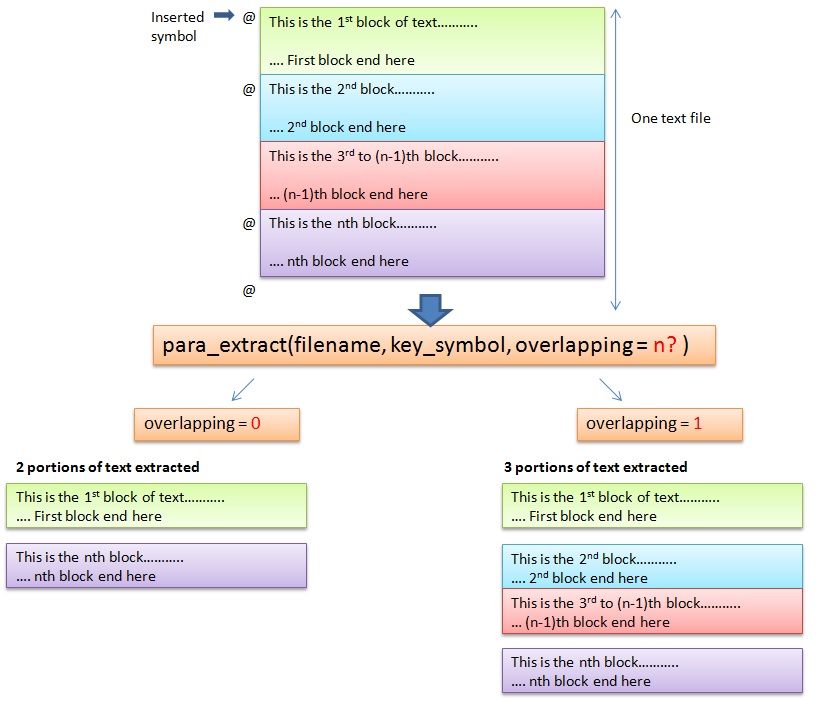
I came up with the following script that allows users to put a specific symbol such as “@” at the start and end of the paragraph to mark those paragraphs or sentences to be extracted. More than one portion can be selected and they can be returned as a list for further processing. For my case, each of the paragraph outputted will be auto summarized.

The following diagram illustrated the two different kinds of extraction.

Illustration of extraction type

The script scans all the lines of the text file, looking for the key_symbol (“@” in this case) and marks the index of the selected lines. The present method only use string “startwith” function. It can be expanded to be using regular expression.

Depending on the mode (overlapping or non-overlapping), it will calculate the portion of the text to be selected and output as a list which can be use for further processing.

Script can be found here.


Scaping google results using python (Part 3)

The  post on the testing of google search script I created last week describe the limitations of the script to scrape the required information. The search phrase is “best hotels to stay in Tokyo”. My objective is to find suitable and popular hotels to stay in Tokyo and within the budget limit.

The other limitation is that the script can only take in one input or key phrase at one go. This is not very useful. Users would tend to search a variation of the key phrases to get the desirable results. I done some modifications to the script so it can take in either a key phrase (str) or  a list of key phrases (list) so it can search all the key phrases at one go.

The script will now iterate the search phrases. Below is the summarized flow:

  1. For each key phrase in key phrase list, generate the associated google search url, append all url to list.
  2. For the list of google search url, Scrapy will scrape the individual url for the google results links. Append all links to a output file. There is one drawback. The links for the first key phrases will be displayed first followed by the 2nd key phrase.
  3. For each of the links, Scrapy will scrape the content namely the title, meta description and for now, if specified,  all the text within the <p> tag.
  4. The resulting file will be very big depending on the size of the search results.

The format of the output is still not to satisfaction. Also printing all the <p> tag does not accomplished much in summarizing what I need.

The next step, hopefully, can utilize some of the NLTK and summarize tools to help filter the results.

The current script is in Git Hub.

Getting Google Search results with python (testing the program)

I was testing out the google search script I created last week. I was searching for the “best hotels to stay in Tokyo”. My objective is to find suitable and popular hotels to stay in Tokyo and within the budget limit.

The python module was created with the intention to display more meaningful and relevant data without clicking to individual websites. However, with just the meta title and meta contents from the search results, it is not really useful in obtaining meaningful results.

I tried to modify the module by extraction of the paragraphs from each site and output them together with the meta descriptions. I make some changes to the script to handle  multiple newline characters and debug on the unicode error that keeps popping out when output the text results.

To extract the paragraphs from each site, I used the xpath command as below.

sel = Selector(response)
paragraph_list = sel.xpath('//p/text()').extract()

To handle the unicode identification error, the following changes are made. The stackoverflow link provides the solution to the problem.

## convert the paragraph list to one continuous string
para_str = self.join_list_of_str(paragraph_list, joined_chars= '..')
## Replace any unknown unicode characters with ?
para_str = para_str.encode(errors='replace')
## Remove newline characters
para_str = self.remove_whitespace_fr_raw(para_str)

With the paragraphs displayed at the output, I was basically reading large chunks of texts and it was certainly messy with the newline removed. I could not really get good information out of it.

For example, it is better to get the ranked hotels from tripadvisor site but from the google search module, tripadvisor only displays the top page without any hotels listed. Below is the output I get from TripAdvisor site pertaining to the search result.

Tokyo Hotels: Check Out 653 hotels with 77,018 Reviews – TripAdvisor
ttp://www.tripadvisor.com.sg/Hotels-g298184-Tokyo_Tokyo_Prefecture_Kanto-Hotels.html

Tokyo Hotels: Find 77,018 traveller reviews and 2,802 candid photos for 653 hotels in Tokyo, Japan on TripAdvisor.

Price per night..Property type..Neighbourhood..Traveller rating..Hotel class..Amenities..Property name..Hotel brand

Performing recursive crawling on TripAdvisor itself perhaps will achieve more meaningful results.

Currently, I do not have much idea on enhancing the script to extract more meaningful data. Perhaps I can use text processing to summarize the paragraphs into meaningful data which would be the next step, utilizing the NLTK module. However, I am not hopeful of the final results.

For this particular search query, perhaps it would be easier to cater specific crawling methods on several target website such as TripAdvisor, Agoda etc rather than a general extraction of text.

Getting Google Search results with Scrapy (2nd Part)

This is the follow up of the Getting Google Search results with Scrapy. In this post, the initial python script for scraping the google search results is completed. The completed script are found in the github.

The program, as described in part 1, obtained the results links from google main page and each links are run separately using Scrapy. In this way, users have more flexibility in obtaining various information from individual websites. At present, only the title and meta contents are scrapped from each website. The other advantage is that is remove further dependency from Google html tag changes.

The disadvantages are that the time taken are relatively longer and descriptions are different from Google’s short summary. I still trying to figure out how to make the contents more meaningful. The present meta content tags are mostly missing for various websites and the contents are not representative of the text.

Dependency of script are Scrapy and yaml (for unicode handling). Both can be downloaded using PIP.

Scripts is divided into 2 parts. The main script for running is from Python_Google_Search.py. The get_google_link_results.py is the scrapy spider for crawling either the google search page or individual websites. The switch depends on the json setting file created.

The spider (get_google_link_results.py) module is a simple script that first get the information from the setting Json file and determine the type of parsing to handle. If the selection is google search links, it will use the following xpath commands to retrieve the all the result links.

sel = Selector(response)
## extract a list of website link related to the search
google_search_links_list = sel.xpath('//h3/a/@href').extract()
google_search_links_list = [re.search('q=(.*)&sa',n).group(1) for n in google_search_links_list\
                            if re.search('q=(.*)&sa',n)]

If it is parsing all the individual results links, it will use the following xpath contents to scrape the meta information

title = sel.xpath('//title/text()').extract()
if len(title)>0: title = title[0]
contents = sel.xpath('/html/head/meta[@name="description"]/@content').extract()
if len(contents)>0: contents = contents[0]

Example of output obtained by searching “Hello Pandas”.  This first 7 results are as below.

####### Google results #####################
Hello Panda – Wikipedia, the free encyclopedia
//en.wikipedia.org/wiki/Hello_Panda
[]
####################
Meiji
//www.meiji.com.au/hellopanda.html
[]
####################
Meiji Hello Panda Chocolate Biscuit, 9.01 Ounce: Amazon.com: Grocery & Gourmet Food
//www.amazon.com/Meiji-Hello-Panda-Chocolate-Biscuit/dp/B000H2DZS0

For the best selection anywhere shop Amazon Grocery for all of your pantry needs. Use Subscribe and Save to save an additional 5% on your regular groceries with free-automatic delivery.
####################
Calories in Meiji – Hello Panda Biscuits, with Choco Cream | Nutrition and Health Facts
//caloriecount.about.com/calories-meiji-hello-panda-biscuits-i170737

Curious about how many calories are in Hello Panda Biscuits? Get nutrition information and sign up for a free online diet program at CalorieCount.
####################
Buy Meiji Hello Panda Creamy Chocolate Filled Biscuits at Tofu Cute
//www.tofucute.com/meiji-hello-panda-biscuits-chocolate~p42.html
[]
###################
Japanese Snack Reviews: Meiji “Hello Panda” Cookies (Chocolate)
//japanesesnackreviews.blogspot.sg/2012/10/meiji-hello-panda-cookies-chocolate.html
[]
####################### Results End ##################

The script is still in infant stage. There is a lot of work under construction. The first will be to obtain more meaningful summary from each website. At present, I am thinking of using NLTK but have not really firmed out any solid approach. Any suggestions are greatly appreciated.