Python

Integrating Google Bard with Python via Bard-API

Using Google Bard in Python via bardapi

Google Bard is a large language model (LLM) similar to OpenAI’s ChatGPT, capable of answering questions, generating creative text, translating languages, and producing various forms of creative content. Currently, Google Bard is available to the public, but in a limited beta release. Users can join a waitlist to apply for access to Bard.

For those eager to integrate Google Bard with Python, it is important to note that there is currently no official API available. However, we can utilize Daniel Park’s bardapi to use in python environment.

There are several advantages of using Google Bard (bardapi version) over OpenAI (API version).

  1. Bard is more up-to-date compared to OpenAI, whose knowledge cutoff was in September 2021.
  2. Bard is currently available for free usage unlike the OpenAI API version.
  3. Bardapi has the ability to understand chat history, which is not readily available with the OpenAI API. However, it is worth noting that by leveraging tools like LangChain, it is possible to integrate memory state functionality with the OpenAI API, enabling similar capabilities.

Below is a sample guide on how to integrate Bard with python using the Bardapi.


# Script reference: https://github.com/dsdanielpark/Bard-API

from bardapi import Bard
import os
import requests
os.environ['_BARD_API_KEY'] = 'xxxxxxx'

# This will allow us to continue conversation with Bard in separate query
session = requests.Session()

session.headers = {
"Host": "bard.google.com",
"X-Same-Domain": "1",
"User-Agent": "Mozilla/5.0 (Windows NT 10.0; WOW64) AppleWebKit/537.36 (KHTML, like Gecko) Chrome/91.0.4472.114 Safari/537.36",
"Content-Type": "application/x-www-form-urlencoded;charset=UTF-8",
"Origin": "https://bard.google.com",
"Referer": "https://bard.google.com/",
        }

session.cookies.set("__Secure-1PSID", os.getenv("_BARD_API_KEY")) 

bard = Bard(token=token, session=session, timeout=30)
bard.get_answer("We will talk about latest presidents in Germany and Italy. Who are they")['content']

# Continued conversation without set new session
bard.get_answer("What we talk about just now??")['content']


Python Bard API continuing conversation within a session

Google Bard also has the ability to return images, which has been enabled in the development version of Bard-API. We can expect this feature to be available in the production version soon.

Conclusion

In conclusion, the Bard-API package provides a practical and effective means to interact with Google Bard’s response API within your Python environment, bridging the gap until the official release of the Bard API.

By utilizing Bard-API, you can fully explore and leverage the capabilities of Bard, allowing you to experiment with various queries and unlock the valuable insights it has to offer.

This post has also been published on Medium.

Extracting Web Analytics Data using Python & Adobe Analytics 2.0 APIs

The Adobe Analytics 2.0 APIs provide a powerful way to directly interact with Adobe’s servers, enabling you to perform various actions programmatically that were previously only available through the user interface. In this blog post, we will explore how to leverage Python and the 2.0 API to extract web analytics data from Adobe Analytics.

Getting Started: OAuth Server-to-Server Credentials

The Service Account (JWT) credentials have been deprecated in favor of the OAuth Server-to-Server credentials. This guide will focus on using the latter. To obtain the API, Client and Secret key, you can refer to the official Adobe Developer documentation on the setup.

Authenticating and Accessing Adobe Analytics 2.0 API with Python

import requests
from authlib.integrations.requests_client import OAuth2Session

# Configure the Adobe Analytics API credentials
client_id = 'YOUR CLIENT ID'
client_secret = 'YOUR CLIENT SECRET'
token_endpoint = 'https://ims-na1.adobelogin.com/ims/token'
company_name = 'TGT_COMPANY'

# Create an OAuth2Session object with the client credentials
oauth = OAuth2Session(client_id, client_secret, scope='openid AdobeID additional_info.projectedProductContext')

# Fetch the access token from Adobe IMS
token = oauth.fetch_token(token_endpoint)

## Test a simple GET query
api_url = r'https://analytics.adobe.io/api/{}/annotations?locale=en_US&limit=10&page=0&sortProperty=id'.format(company_name)

headers = {
'Authorization': 'Bearer ' + token['access_token'],
'x-api-key': client_id
}
response = requests.get(api_url, headers=headers)

if response.status_code == 200:
    data = response.json()
print(data)
else:
print('Error:', response.status_code, response.text)

The following Python script demonstrates the authentication process and making consecutive API requests using Authlib.

Using the Reporting API

The /reports endpoint serves as the primary endpoint for reporting requests to retrieve web analytics metrics. Since the /reports endpoint utilizes the same API as the Analytics Workspace UI, it offers extensive configuration options. To initiate a report request, we must provide a Date Range, Metrics, and at least one Dimension. The /reports endpoint requires a specific JSON data structure to define the requested report. You can refer to the sample code below for the structure. For more informationon creating the JSON Structure, you can visit the Adobe Analytics Docs.

# Setting up for the JSON Structure
# Getting the Visits and Page views from Jun 1st to Jun 5th group
# by each day results.

RSID = 'Report Suite ID'
START_DATE = '2023-06-01'
END_DATE = '2023-06-05'
MIDNIGHT = 'T00:00:00.000'
DATE_RANGE = START_DATE + MIDNIGHT + '/' + END_DATE + MIDNIGHT

DIM = 'variables/daterangeday'
METS = ['metrics/visits','metrics/pageviews']
METS_OBJ = [{'id':x} for x in METS]

query_json = {
"rsid":RSID,
"globalFilters":[
                  {
"type":"dateRange",
"dateRange":DATE_RANGE
                  }
               ],
"metricContainer":{
"metrics":METS_OBJ,

              },
"dimension":DIM,
"settings":{
"dimensionSort":"asc"
               }
}

api_url = r'https://analytics.adobe.io/api/{}/reports'.format(company_name)

response =requests.post(url=api_url, headers=headers, json=query_json)

# Process the response
if response.status_code == 200:
    data = response.json()
else:
print('Error:', response.status_code, response.text)

Formatting the Response Output

Upon receiving the response from the /reports endpoint, you can format the output in a tabular structure for better readability and analysis.

df  =pd.DataFrame(response.json()['rows'])
df.columns = [DIM+'_key',DIM,'data'] #rename columns<br>
dfa = pd.DataFrame(df['data'].to_list())
dfa.columns = METS
output = pd.concat([df.iloc[:,:-1],dfa],axis='columns')
output

Conclusion

We can leverage Python and the Adobe Analytics 2.0 APIs to provides a automated solution for extracting web analytics data. By utilizing OAuth Server-to-Server credentials and making API requests, we can automate data retrieval, generate custom reports, storing to databaes and gain valuable insights.

This post has also been published on Medium.
Create your own GIF from your favourite anime

Python Modules – Use pip install :

  1. pytube: Download Video (only if your source is from youtube)
  2. moviepy: For video editing

Python Codes

from pytube import YouTube
from moviepy.editor import *

## Download youtube with highest resolution
yt_video = YouTube('your_youtube_url_link')
dl_file_location = yt_video.streams.filter(progressive=True, file_extension='mp4').order_by('resolution').desc().last().download()

## Open the downloaded file for editing
clip = VideoFileClip(dl_file_location)
clip = clip.subclip(0, 3)
clip.write_gif(r'Your_gif_location.gif')

The simple way to export Shopee Ads keyword bids data to Excel

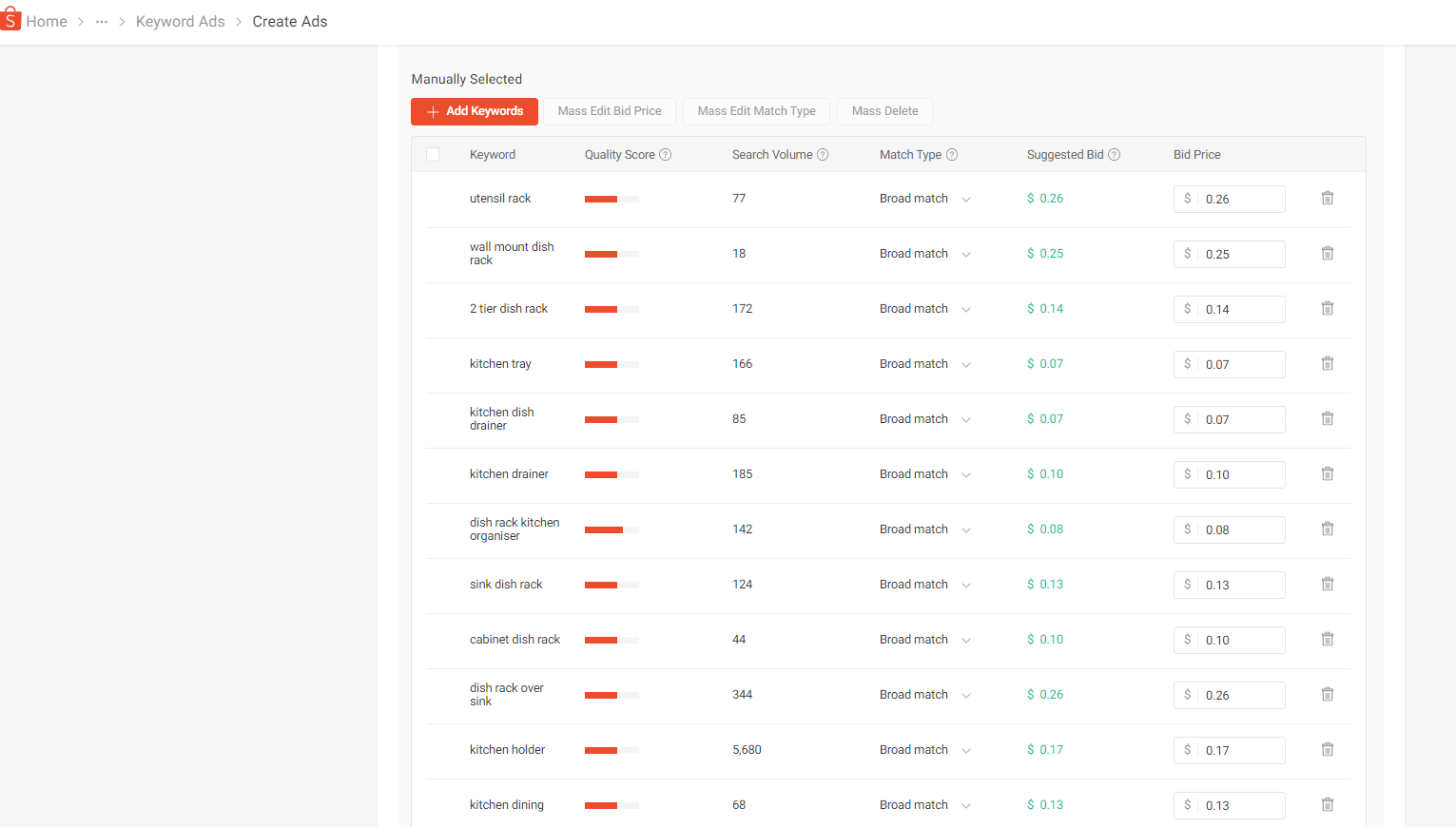
Selecting which keywords to bid for for keywords Ads in Shopee can be a hassle on Shopee platform. One of the main reason is that you cannot really sort or rank by the number of searches and/or bid price on Shopee platform. Having the option to export to excel/csv can really help on the analysis. And is really simple to do so with Python.

Navigate to the “Create (keyword) Ads”. Select Add Keywords and add as many related keywords as you like. Once completed, save the page as html file. Next we will use python pandas to parse the table tag in the html file and generate as pandas DataFrame.

## Sample Code
import pandas as pd

tgt = r'C:\yourfilelocation\shopee.html'

# list of table. 
# For this, table 0 is header col and table 1 is data
tb = pd.read_html(tgt) 

# Assign header from table 0 to table 1
tb[1].columns= tb[0].columns.tolist() 

# Drop empty columns
bid_table = tb[1].dropna(1,'all')     

# Can save to excel as well
bid_table.to_csv(r'c:\data\output.csv', index=False)

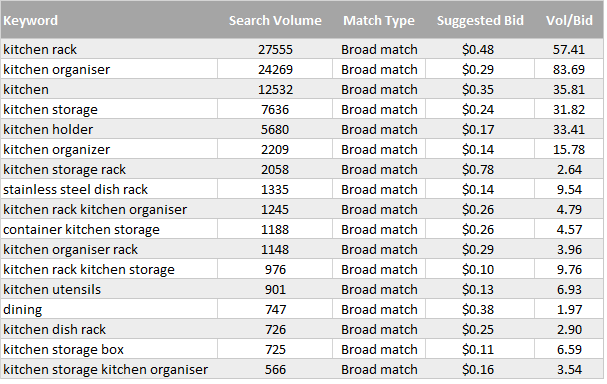
Sample of the output is shown above. I usually sort by search volume (highest). I also add in the Search Vol/Num Bids columns which give some indication of the search volume per 0.1cents of bids.

Selenium can be used to automated the saving of html file.

The “Quality Score” is not able to parse using the read_html method given it is a generated image file. However, for those who are really keen, the quality score is reflected in the image tag attribute [style=”width: x%]. Parsing this will give the the estimated quality score.

Simple way to export Shopee Ads keyword bids data to Excel using python pandas. https://simply-python.com/2021/04/19/export-shopeeads-keyword-bids/

Adding PostgreSQL to Django

Requirements

  1. VirtualEnv
  2. Django
  3. PostgreSQL

Add on to post from Painless PostgreSQL + Django

The recommendation is to follow the steps from the original well-written post and refers to the following to fill in some of the possible gaps .

  1. Activate a virtualenv
  2. Git clone the project (in the post) to local directory
  3. Run pip install -r requirements.txt
  4. Upgrade Django version (will encounter error if this step is not performed). pip install django==1.11.17.  This only applies if you following the post and cloning the project used in the post.
  5. Create new user in Postgres, create new database & grant assess (Step 1 & 2 of post)
  6. Update settings.py on the database portion.
  7. Create environment variables in the virtualenv.  See link for more information.
    1. Note: Secret Key needs to be included as one of the environment variable.
    2. Update the postactivate file of the virtualenv so the environment variables are present when virtualenv is activated.
    3. To get path of the virtualenv: echo $VIRTUAL_ENV

Create new user in Postgres

# Psql codes for Step 1 and 2 of original post.
# ensure Postgres server is running
psql
# create user with password
CREATE USER sample_user WITH PASSWORD 'sample_password';
# create database
CREATE DATABASE sample_database WITH OWNER sample_user;

Update database information in Setting.py

# Changes in the settings.py

DATABASES = {
    'default': {
        'ENGINE': 'django.db.backends.postgresql_psycopg2',
        'NAME': os.environ.get('DB_NAME', ''),
        'USER': os.environ.get('DB_USER', ''),
        'PASSWORD': os.environ.get('DB_PASS', ''),
        'HOST': 'localhost',
        'PORT': '5432',
    }
# SECURITY WARNING: keep the secret key used in production secret!
SECRET_KEY = os.environ.get('DJANGO_SECRET_KEY', '')

Update environment variables in VirtualEnv

# postactivate script in the project virtual env bin path.
# E.g. ~/.virtualenv/[projectname]/bin/postactivate

#!/bin/bash
# This hook is sourced after this virtualenv is activated.
export DB_NAME='sample_database'
export DB_USER='sample_user'
export DB_PASS='sample_password'
export DJANGO_SECRET_KEY='thisissecretkey'

Running migrations (Ensure PostgreSQL server is running)

python manage.py makemigrations
python manage.py migrate
python manage.py createsuperuser
python manage.py runserver

Additional notes:

  1. When running python manage.py runserver on local host and error occurs, check domain is included in the ALLOWED_HOSTS of setting.py. Alternatively, you can use below:
    • ALLOWED_HOSTS = [‘*’] # for local host only
  2. No database created when running psql command: CREATE DATABASE …, check if  semi-colon add to end of the statement. In the event, the ‘;’ is missing, type ‘;’ and try inputting the commands again. See link for more details.

Useful Seaborn plots for data exploration

Types of plots:

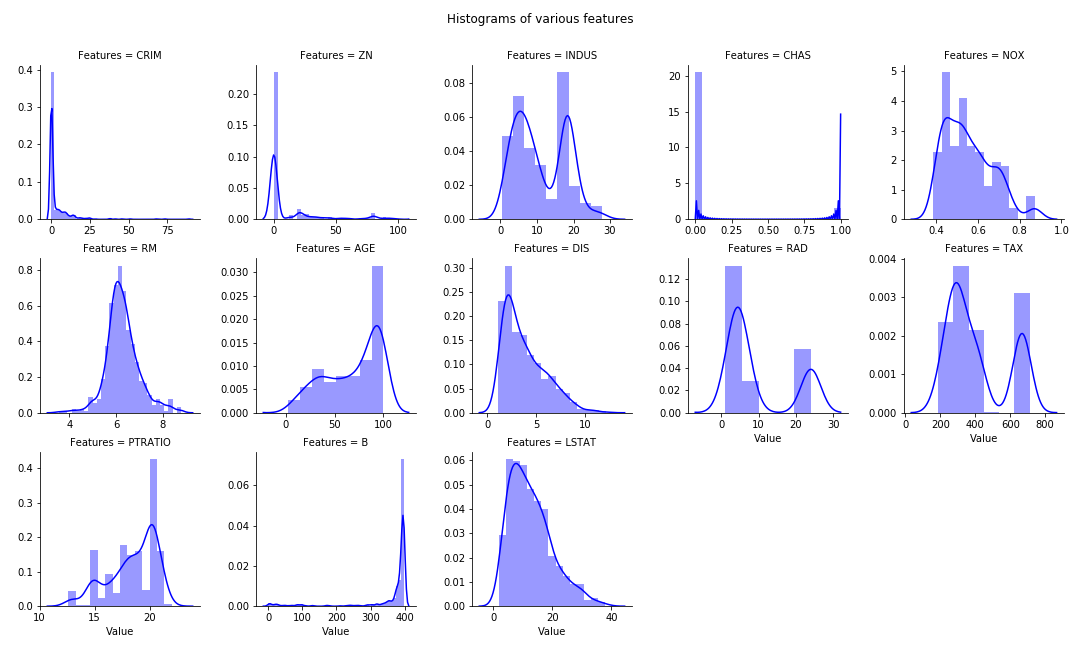
  1. Multiple features histogram in single chart
  2. Diagonal Correlation Matrix
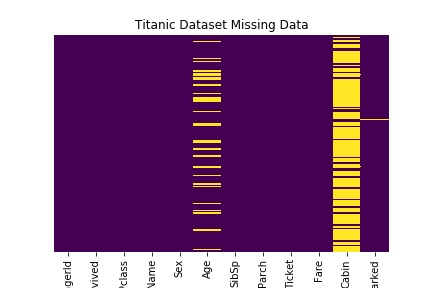
  3. Missing values Heat Map

Boston Housing prices dataset is used for 1, 2. Titanic Dataset for item 3.

Basic Python module import

import pandas as pd
import numpy as np
import seaborn as sns
import matplotlib.pyplot as plt
% matplotlib inline

from sklearn.datasets import load_boston
boston = load_boston()
X = boston.data
y = boston.target
df = pd.DataFrame(X, columns= boston.feature_names)

Multiple Histogram plots of numeric features

  • Stack the dataframe with all the features together. May consume significant memory if dataset have large number of features and observations.
  • If need to separate by group (hue in FacetGrid), can modify the numeric_features:
  • numeric_features= df.set_index(‘Group’).select_dtypes(exclude=[“object”,”bool”])
numeric_features= df.select_dtypes(exclude=["object","bool"])
numeric_features = numeric_features.stack().reset_index().rename(columns = {"level_1":"Features",0:"Value"})
g = sns.FacetGrid(data =numeric_features, col="Features",  col_wrap=5, sharex=False, sharey=False)
g = g.map(sns.distplot, "Value", color ='blue')
plt.subplots_adjust(top=0.9)
plt.suptitle("Histograms of various features")

multiplehist

Diagonal Heat Map of Correlation Matrix

Reference: seaborn.pydata.org. Utilize the Seaborn heat map with masking of the upper diagonal.

f, ax = plt.subplots(figsize=(12, 12))
corr = df.select_dtypes(exclude=["object","bool"]).corr()

# TO display diagonal matrix instead of full matrix.
mask = np.zeros_like(corr, dtype=np.bool)
mask[np.triu_indices_from(mask)] = True

# Generate a custom diverging colormap.
cmap = sns.diverging_palette(220, 10, as_cmap=True)

# Draw the heatmap with the mask and correct aspect ratio.
g = sns.heatmap(corr, mask=mask, cmap=cmap, vmax=1, center=0, annot=True, fmt='.2f',\
square=True, linewidths=.5, cbar_kws={"shrink": .5})

# plt.subplots_adjust(top=0.99)
plt.title("Diagonal Correlation HeatMap")

heatmap

Missing values Heat Map

Reference: Robin Kiplang’at github

dataset ='https://gist.githubusercontent.com/michhar/2dfd2de0d4f8727f873422c5d959fff5/raw/ff414a1bcfcba32481e4d4e8db578e55872a2ca1/titanic.csv'

titanic_df = pd.read_csv(dataset, sep='\t')
sns.heatmap(titanic_df.isnull(), yticklabels=False, cbar = False, cmap = 'viridis')

plt.title("Titanic Dataset Missing Data")

missingdata


Create own flash cards video using Python

Build your own study flash cards video (+ background music) using Python easily.

Required Modules

  1. moviepy
  2. ImageMagick — for creating text clip
  3. pandas — optional for managing CSV file

Basic steps

  1. Read in the text information. Pandas can be used to read in a .csv file for table manipulation.
  2. create a Textclip object for each text and append all Textclips together
  3. Add in an audio if desired.  Allow the audio to loop through duration of the clip
  4. Save the file as mp4.

Sample Python Project — Vocabulary flash cards

Below is a simple project to create a vocabulary list of common words use in GMAT etc. For each word and meaning pair, it will flash the word followed by its meaning . There is slight pause in the timing to allow some time for the user to recall on the meaning for the particular words

Sample table for wordlist.csv (which essentially is a table of words and their respective meanings) * random sample (subset) obtained from web

Screen Shot 2019-07-23 at 11.32.42 PM


def create_txtclip(tgt_txt, duration = 2, fontsize = 18):
    try:
        txt_clip = TextClip(tgt_txt, fontsize = fontsize, color = 'black',bg_color='white', size=(426,240)).set_duration(duration)
        clip_list.append(txt_clip)
    except UnicodeEncodeError:
        txt_clip = TextClip("Issue with text", fontsize = fontsize, color = 'white').set_duration(2)
        clip_list.append(txt_clip)

from moviepy.editor import *

df = pd.read_csv("wordlist.csv")
for word, meaning in zip(df.iloc[:,0], df.iloc[:,1]):
    create_txtclip(word,1, 70)
    create_txtclip(meaning,3)

final_clip = concatenate(clip_list, method = "compose")

# optional music background with loop
music = AudioFileClip("your_audiofile.mp3")
audio = afx.audio_loop( music, duration=final_clip.duration)

final_clip = final_clip.set_audio(audio)

final_clip.write_videofile("flash_cards.mp4", fps = 24, codec = 'mpeg4')<span id="mce_SELREST_start" style="overflow:hidden;line-height:0;"></span>

In some cases, the audio for the flash cards does not work when play with Quicktime, will work on VLC

Sample video (converted to gif)

ezgif.com-video-to-gif

PDF manipulation with Python

This post covers basic PDF manipulation for daily tasks using simple Python modules.

  1. Merging mulitple PDF
  2. Extract text from PDF
  3. Extract image from PDF

Merging PDF

from PyPDF2 import PdfFileMerger
pdfs = ['a.pdf', b.pdf]
merger = PdfFileMerger()

for pdf in pdfs:
    merger.append(pdf)

merger.write("output.pdf")

Extract text from PDF

import pdftotext

# Load your PDF
with open("Target.pdf", "rb") as f:
    pdf = pdftotext.PDF(f)

# Save all text to a txt file.
with open('output.txt', 'w') as f:
    f.write("\n\n".join(pdf))

More information from “Convert PDF pages to text with python

Extract Image (JPEG) from PDF


import os
import tempfile
from pdf2image import convert_from_path

filename = 'target.pdf'

with tempfile.TemporaryDirectory() as path:
     images_from_path = convert_from_path(filename, output_folder=path, last_page=1, first_page =0)

base_filename  =  os.path.splitext(os.path.basename(filename))[0] + '.jpg'      

save_dir = 'your_saved_dir'

for page in images_from_path:
    page.save(os.path.join(save_dir, base_filename), 'JPEG')

More information from “Convert PDF pages to JPEG with python

Google Colab import data, Specs, link Gsheets & link with Kaggle

Importing data to colab

  1. Direct import
    • from google.colab import files
      uploaded = files.upload()
    • import io
      df = pd.read_csv(io.BytesIO(uploaded[‘target.csv’]))
  2. Setup to use file from google drives
    • from google.colab import drive
      drive.mount(‘/content/drive’)
    • View list of files:
    • !ls “/content/drive/My Drive”
    • Note: In the notebook, click on the charcoal > on the top left of the notebook and click on Files, select the file and right click to “copy path”. Note the path must begin with “/content/xxx”

Hardware Spec for Colab

See link.

Linking with Google Sheets (reference from source)

# Step 1
!pip install --upgrade --quiet gspread

# Step 2
from google.colab import auth
auth.authenticate_user()

import gspread
from oauth2client.client import GoogleCredentials
gc = gspread.authorize(GoogleCredentials.get_application_default())

# Step 3
sh = gc.create('My spreadsheet')

worksheet = gc.open('My spreadsheet').sheet1

cell_list = worksheet.range('A1:C2')

import random
for cell in cell_list:
  cell.value = random.randint(1, 10)

worksheet.update_cells(cell_list)

Note: The google sheets is at the starting page of google Drive. Still figuring out the way to specify target directory.

Linking with Kaggle (eg. direct download and import Kaggle dataset)

  1. Retrieve API token from Kaggle (Kaggle–> accounts –> under AP,  hit “Create New API Token.”
  2. Save the token.json in Google Drive
  3. Run the following on colab to link with Kaggle
!pip install kaggle
!mkdir .kaggle
from googleapiclient.discovery import build
import io, os
from googleapiclient.http import MediaIoBaseDownload
from google.colab import auth

auth.authenticate_user()

drive_service = build('drive', 'v3')
results = drive_service.files().list(
        q="name = 'kaggle.json'", fields="files(id)").execute()
kaggle_api_key = results.get('files', [])

filename = "/content/.kaggle/kaggle.json"
os.makedirs(os.path.dirname(filename), exist_ok=True)

request = drive_service.files().get_media(fileId=kaggle_api_key[0]['id'])
fh = io.FileIO(filename, 'wb')
downloader = MediaIoBaseDownload(fh, request)
done = False
while done is False:
    status, done = downloader.next_chunk()
    print("Download %d%%." % int(status.progress() * 100))
os.chmod(filename, 600)

source: https://colab.research.google.com/drive/1JG6d49pAWpn4kF92c0Ko16gQV6hptAro#scrollTo=CSKDTkuLuTY3

!cp /content/.kaggle/kaggle.json ~/.kaggle/kaggle.json
!kaggle config set -n path -v{/content}

Testing

!kaggle datasets list

Downloading particular data set from Kaggle

  1. Under particular Kaggle competition, look under Data and get the API commands
  2. Eg. Some competition data set from Kaggle
  3. Commands copied from API: kaggle competitions download -c ndsc-advanced
  4. Modify the Command and run in Colab:
    • !kaggle competitions download -c ndsc-advanced -p /content
  5. Unzip the files:
    • !unzip \*.zip
  6. Open file with pandas:
    • import pandas as pd
      d = pd.read_csv(‘beauty_data_info_val_competition.csv’)

References:

  1. Setting Up Kaggle in Google Colab

Running R on Jupyter Notebook with R Kernel (No Anaconda)

A simple guide to install R Kernel on Jupyter Notebook (Windows).  Do not need Anaconda.

  1. Objectives:
      1. Install R Kernel on Jupyter Notebook (Windows)
  2. Required Tools:
      1. R for windows— R for windows
      2. JupyterNotebook — Jupyter Notebook
  3. Steps:
      1. Install R. Use the R terminal (do not use R studio) to install R packages:
        • install.packages(c(‘repr’, ‘IRdisplay’, ‘evaluate’, ‘crayon’, ‘pbdZMQ’, ‘devtools’, ‘uuid’, ‘digest’))
        • install.packages(‘IRkernel’)
      2. Make Kernel available to Jupyter
        • IRkernel::installspec()
        • OR IRkernel::installspec(user = FALSE) #install system-wide
      3. Open a notebook and open new R script.

Further notes 

  • After getting Additional R library might be hard to install inside the Notebook. For workaround, install desired library in R terminal then open the Notebook.
  • If need to use R.exe on windows command terminal, ensure R.exe is on path. [likely location: C:\R\R-2.15.1\bin]
  • ggplot tutorial

References: